Today I’ve spent some time making a list of all the things I need for my game. It takes place in a house, which means I need to build a house with a lot of rooms, which are all decorated (to a certain degree). Since the player doesn’t actually get to leave the house, they don’t get to see the outside of it, which means I can probably best build the walls of the house in Unity. Furniture will be made in Maya. I need at least the following things:
What I wanted to do was add multiple cut scenes in the game, but I’ve changed my mind, since several cut scenes will cost me a lot of work. Now, I’m planning to add several triggers in the game, which will trigger things like sounds, or very short animations of, for example, a door slamming shut. When the player enters the final room, a large cut scene is triggered. The rest of the story will be told through collectibles.
24-02-2020
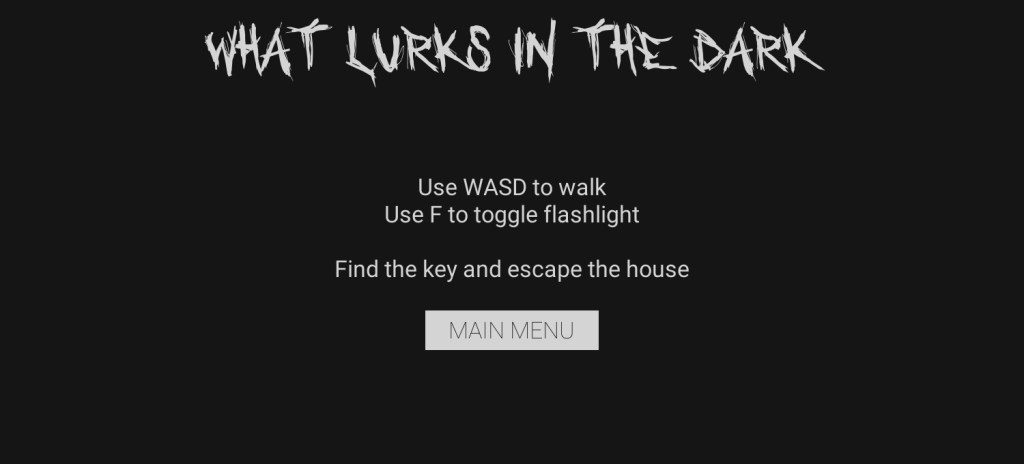
I wasn’t really happy with the “how to play” option on the main menu, so I got rid of it and added it as an extra scene between the main menu and the game itself, which is triggered when the player presses START. This way, the player will always see the “how to play” menu which I think works better than having it be optional.
I struggled a little when I tried to add a fade-out screen to the main menu when START is pressed. For some reason, pressing START would trigger the animation, but the game then refused to trigger the next part of the command which would open the next scene. I decided to get rid of the animation for now, and I’ll try to add it in again later.
26-02-2020
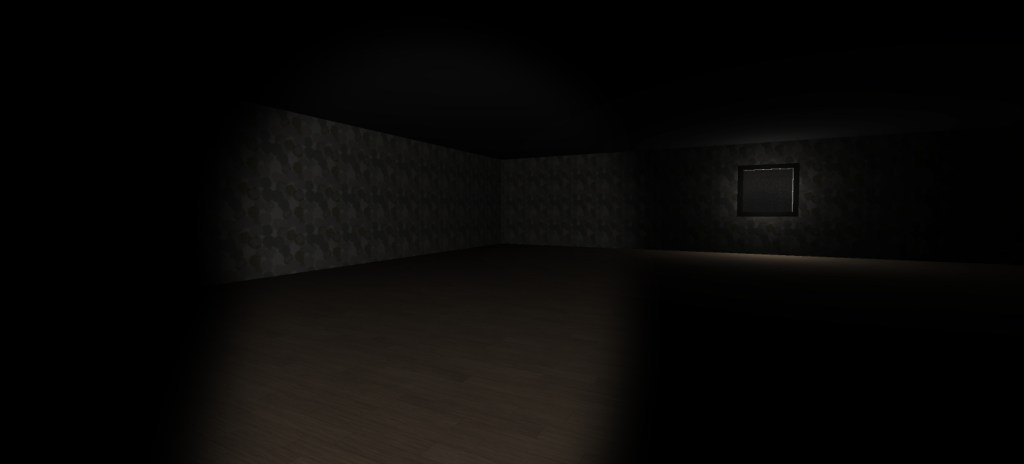
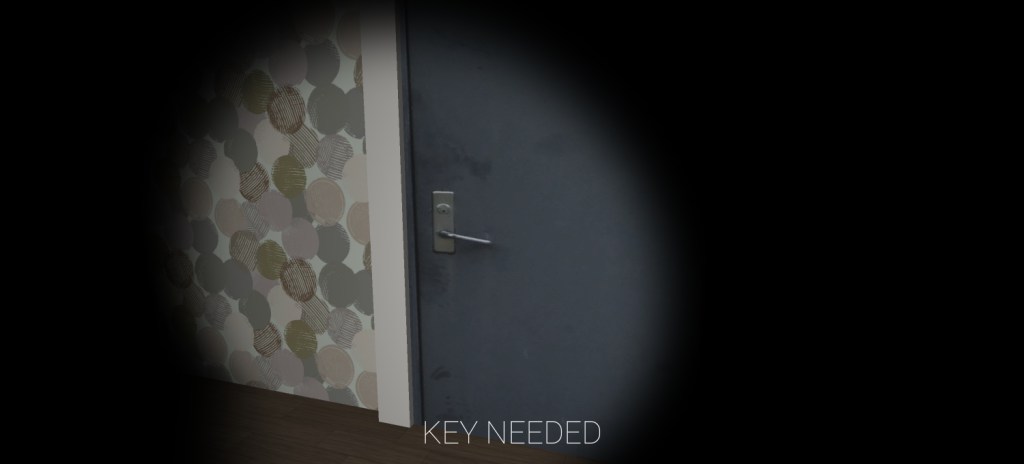
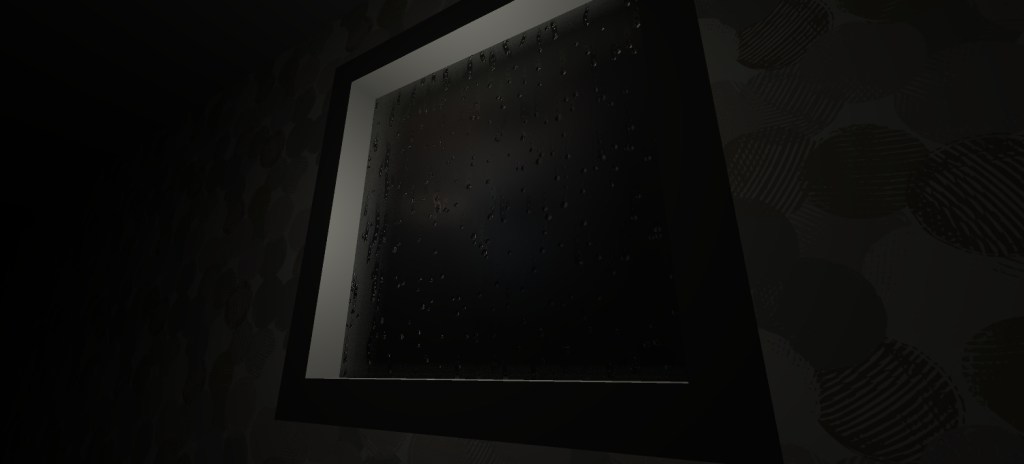
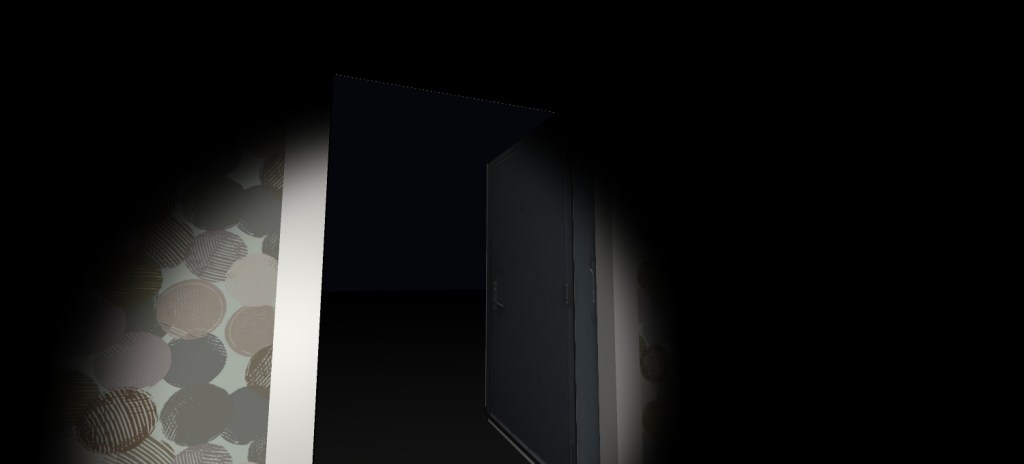
I finally started working on the house the game takes place in. I couldn’t spend a lot of time this week on BPW, which is why I tried to do as much as possible today. I created an interior with floor and wall textures, I implemented my shader by creating a window, I added in the scripts I wrote for the door and the key, and I also added a lightning effect. It doesn’t work that great yet, so I’ll have to look into it later.
Today was the second class of Building Playful Worlds. We focused on triggers and how to change the color of a pillar by colliding with a trigger placed in the world. Before we started, I already had a little bit of an idea of how to get that to work.
What I wanted to do to solve the problem, was to add a collision script to the player. The script would have an if-statement that said, “if the player collides with the game object called Trigger1 (my trigger for the color change), then the color of the material on the pillar will change to [color]”.
Eventually, with some help of others, I decided it would be better to put the script on the trigger instead of the player. Then, instead of having the script look at the name of the game object, I made it look at the tag of the object, in this case my player, which I simply tagged as “player”. This is a much cleaner way of adding collision, because if the script has to look at the name, it has to check all the names of every game object in the scene, which can take a lot of time if your scene has 100+ objects in it. I also added a variable for the color in the script. This way, I can easily decide in Unity which color I want the pillar to change to, once the player collides with the trigger. I put three triggers next to each other, which all change the pillar to another color.
I thought it was a fun exercise to do, and it wasn’t as difficult as I first thought it’d be. I’m gonna play around with it a bit more at home, to see if there’s other things that I can change about the pillar on collision with a trigger.
This week, I also want to establish what I want to do with my final assignment. I already know I want to do something with horror, and either something in a very dark forest with a flashlight, or in a dark house, in which the player can roam around. I don’t know yet what I want to do with my cut scene, and that’s something I want to have a general idea for by next class. I also want to make some concept art.
14-02-2020
I’ve been thinking of a good concept for my final assignment. Right now, my idea is a free-roam game, in which the main character is in a house at night. The player can roam around in the house, which is a terrible place to be at. Going certain ways triggers small cut scenes. These cut scenes show the player all sorts of scary things: ghosts or creatures running down the halls or stumbling down the stairs, terrible things that have happened in the different rooms of the house, or just scary ambiance happening (slamming door, footsteps upstairs even though you’re alone, a flickering light).
Although I’m not sure if the game has to have a goal, I do want to include one. It can be something very simple, such as “leave the house”. I can make it a puzzle game, which involves the player having to find keys to open locked doors, which open up new parts of the house. In the last part the player can find the key of the front door.
I’m not sure if I can realize this idea, but it does sound very cool to make. In the following days, I’ll cook up some concept art for the game, and I would also like to make a main menu.
15-02-2020
Today, I’ve written a very basic script that detects collision between the player and a key and then makes the key disappear. It also shows a message on screen that reads “OBTAINED KEY”. I wrote it with a lot of help of the internet, but I understand what the script does and I’m very happy it works.
This is only half of the interaction that’s necessary for the game, though. I also need to make a door that’s locked and cannot be unlocked as long as the player doesn’t have the key. When the player does have the key, the door can be unlocked. I think I can make this work by using a boolean. If I set player_has_key to false in the beginning of the game and make sure this changes to true when the player obtains the key object, I can add an if/else statement to my door object that says, if player_has_key is false, the door is locked, and else, it is unlocked and can be opened by pressing a certain button.
It sounds pretty easy when I put it like this, but I honestly have no idea if it actually works like this or not. I’ll look into it a little bit more during this week and hopefully I’m already on the right track.
16-02-2020
Since it was very late yesterday when I was working on my script, I placed it on the player instead of the key. So today, I rewrote the script a little and placed it on the key instead of the player. I also wrote another script that detects collision between the player and the door, and checks if the player has the key. If the player doesn’t, a message is shown telling the player they need a key. If the player does, the door unlocks and opens. I made a quick animation of the door opening to test it, but it’s not done yet. I’ll have to make a proper door model soon that I can use.
I also created a simple flashlight by making a spotlight a child of my player. I also gave it a script, which allows the player to turn it on and off by pressing F.
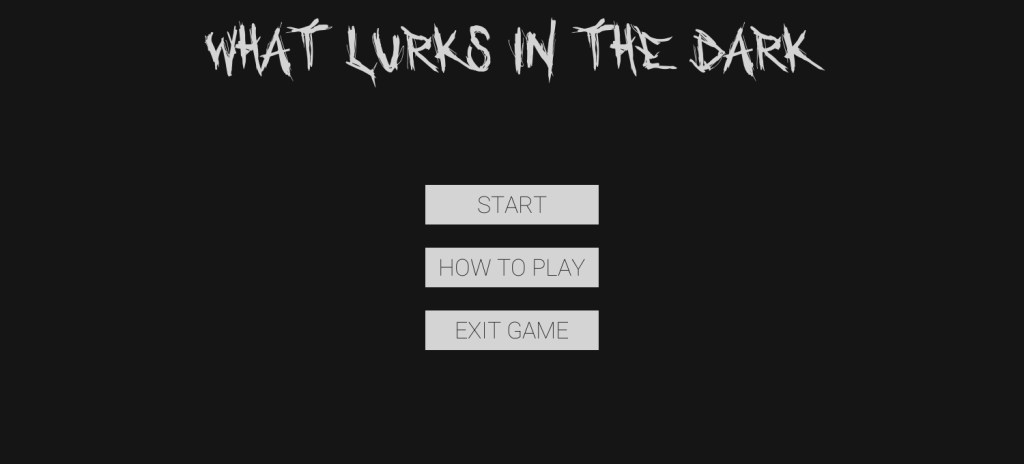
Another thing I did today was work on the main menu of the game. It has three buttons, “START”, “HOW TO PLAY”, and “EXIT GAME”. I still have to make them functional.
17-02-2020
I put everything I have so far in one project, since I was working in three different ones before. I now have one project with a main menu scene, a “how to play” scene, a level scene, and a test room in which I can play around with new scripts and objects and such. It was a bit of a hassle with moving all the scripts and reassigning them, but I managed to do it.
18-02-2020
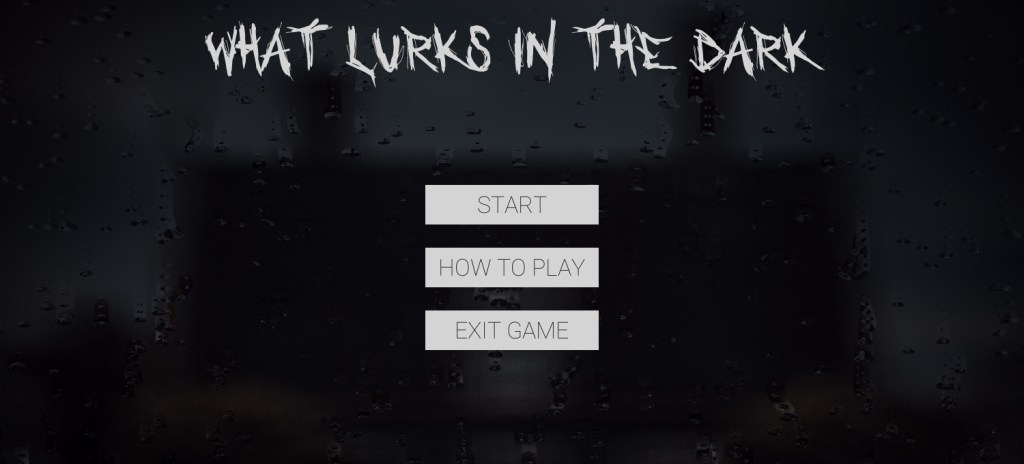
Today I followed this amazing tutorial on how to make raindrops on a window. It’s pretty complicated and works with shader coding, so I don’t really understand the code language and why everything is written the way it is, but I do understand how it works. I think it adds a nice touch to my main menu screen, pictured below. Obviously, this is only a screenshot. The end result is animated.
Today, we started with Building Playful Worlds. I’ve worked in Unity before, but that’s already two years ago. Luckily I still remembered a lot, which helped with keeping up in class.
I’m excited to work in Unity again, because I remember having a lot of fun working in it for my graduation project in high school. Back then, I had to build two levels in the engine, one in an airplane and the other one in a large rocky environment with a volcano. I was responsible for the level designs, so I didn’t have to do any programming or 3D modelling.
This week, I would like to play around in Unity a little more by myself. After that, I’ll watch the tutorial for next week’s homework. I also want to start thinking about what sort of game I would like to make for our final assignment.
04-02-2020
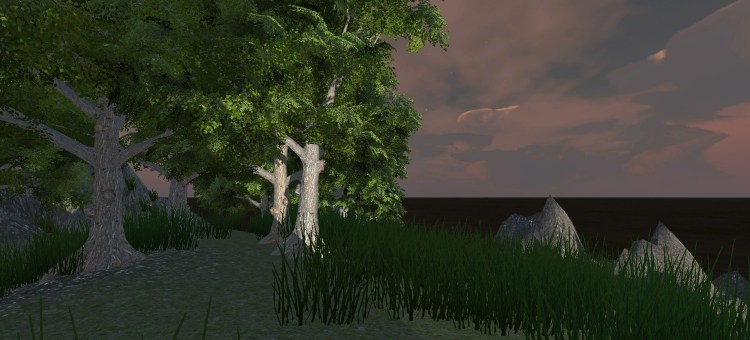
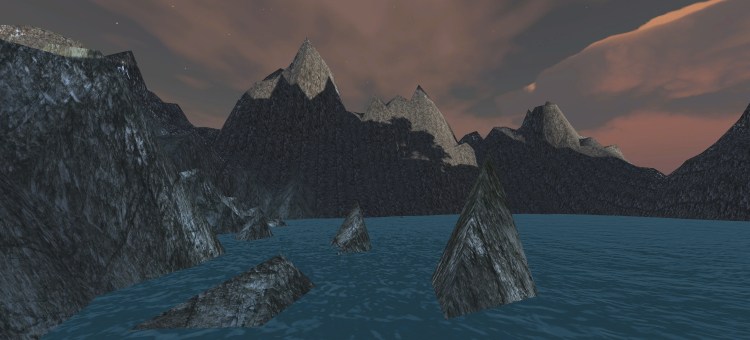
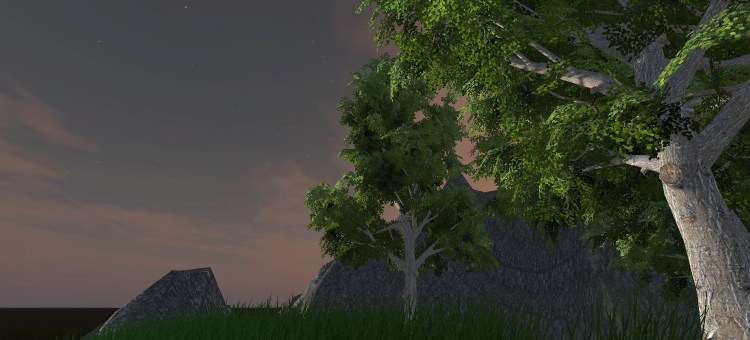
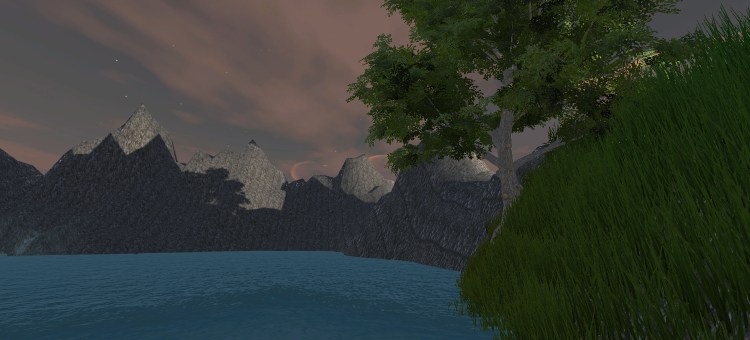
Today I played around in Unity a little bit more by myself, using the standard assets from Unity and a custom skybox from the asset store. I created the following environment:
It was a really good practice for me to get used to the software again.
06-02-2020
Today I started watching the tutorials for next class. I didn’t get too far yet, because I didn’t have a lot of time. So far I haven’t had any trouble understanding it, which is really nice.
09-02-2020
I finished the tutorial series and have a working game now! I did have some trouble when I tried to move my scripts into a folder, Unity didn’t like that and gave an error message which I couldn’t resolve, so I now have all my scripts in the main asset folder in order for them to work. I’ll look into it later and see if I can resolve it. Otherwise, I’ll ask it in next class.
It was really fun and easy to do, and I understand everything so far. Since it’s still some days before next class, I might revisit the project to make the levels a bit more difficult.


 Building Playful Worlds